Screenshot Gallery
×
 ❮❯
❮❯
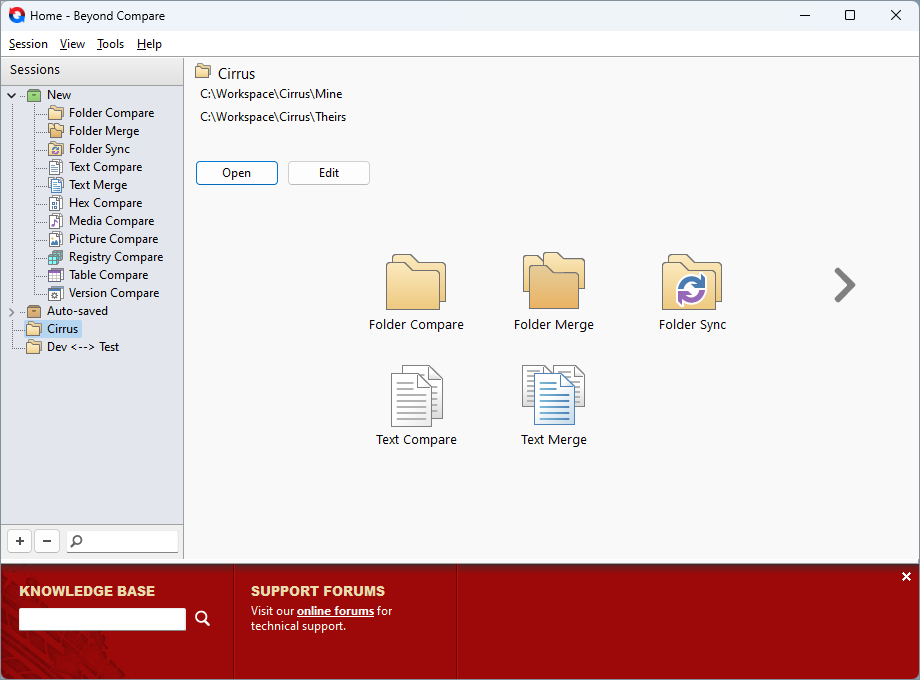
The Home view gives you a base to launch comparisons and manage saved sessions.1 / 14
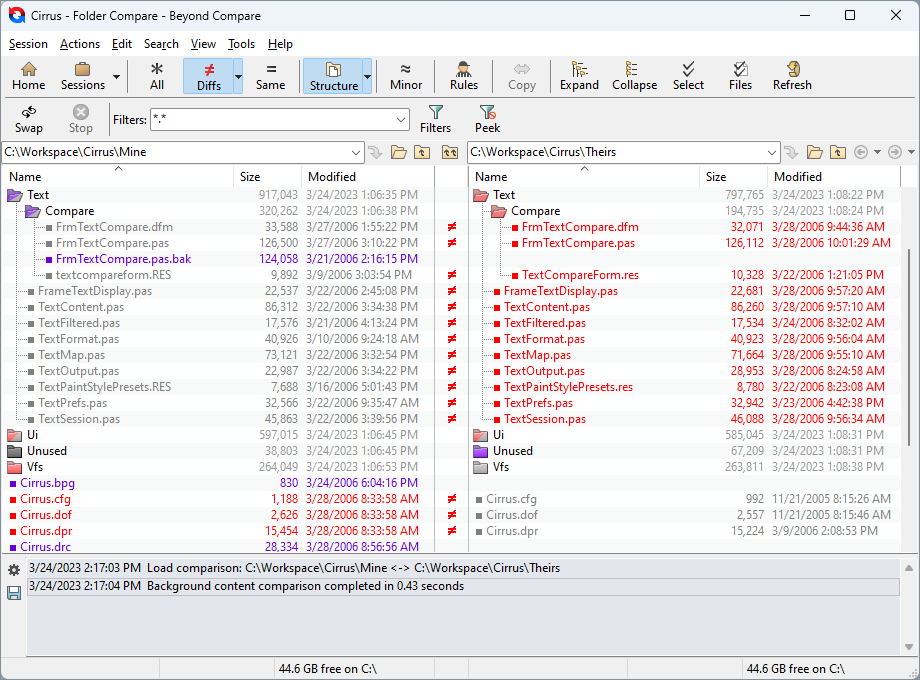
This is a comparison of a local folder and an FTP site. Differences are highlighted in color. The default color for newer files is red and is configurable.2 / 14
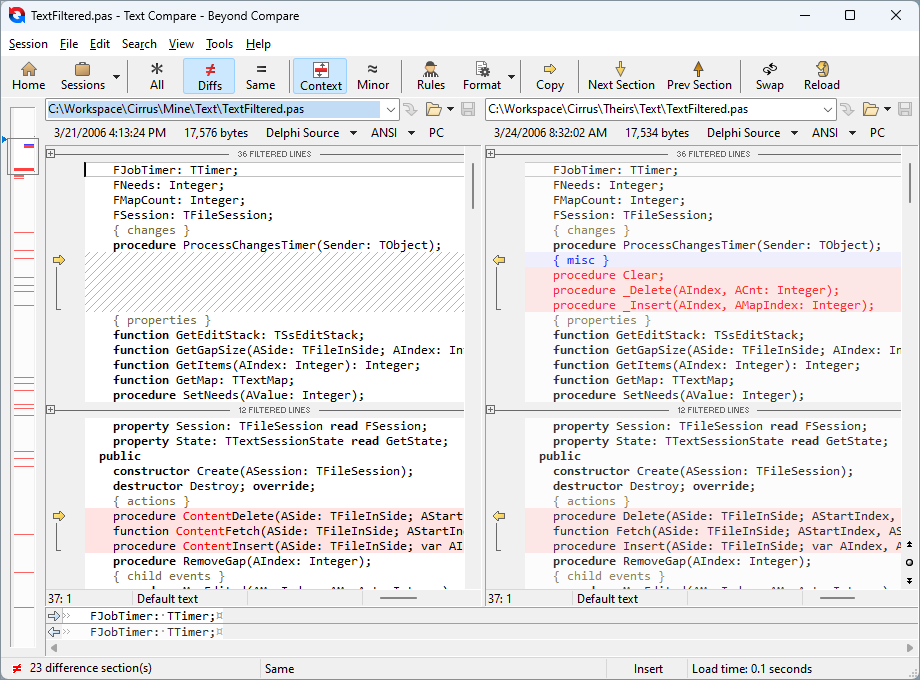
Two source code files with differences marked with red text. Lines with a light red background indicate the presence of a difference. Gutter buttons and hotkeys let you quickly copy sections of code from one side to the other.3 / 14
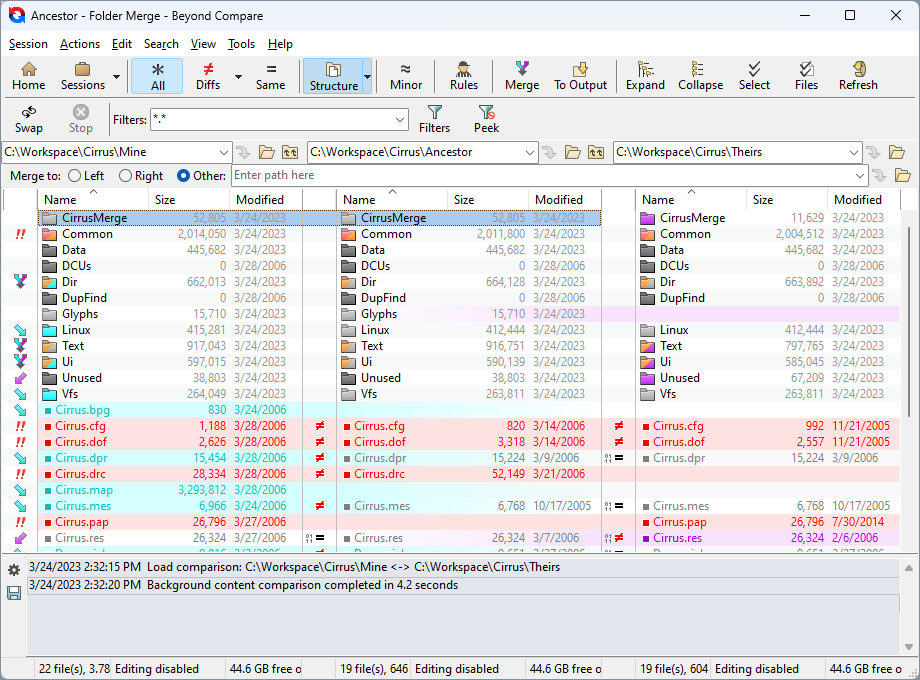
This is a 3-way folder merge session. Folder Merge is a  feature.4 / 14
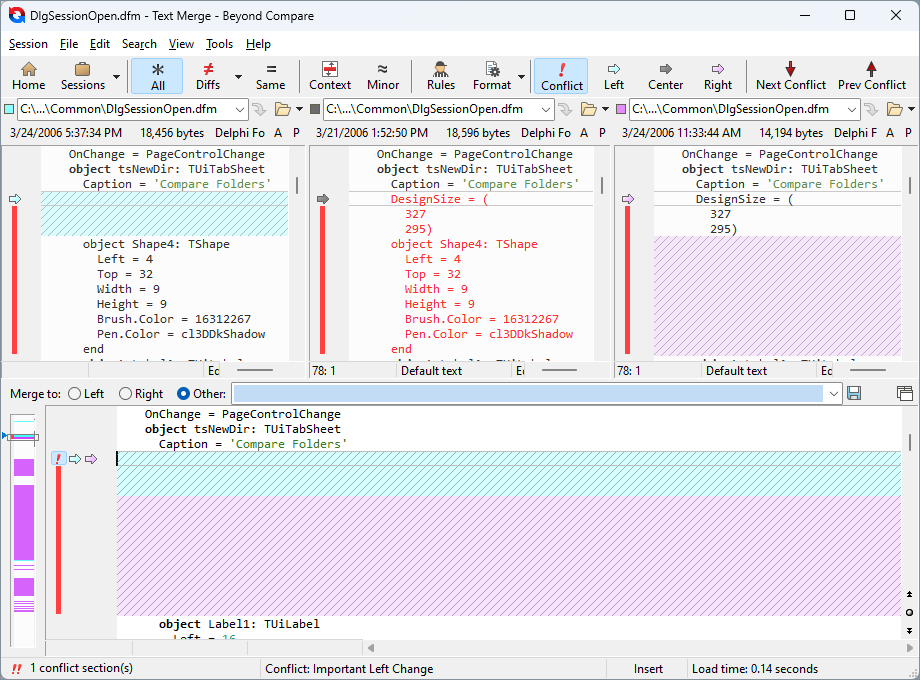
feature.4 / 14The center top file is the common ancestor of the left and right versions. Changes are automatically merged into the editable output in the bottom panel. Text Merge is a feature.5 / 14
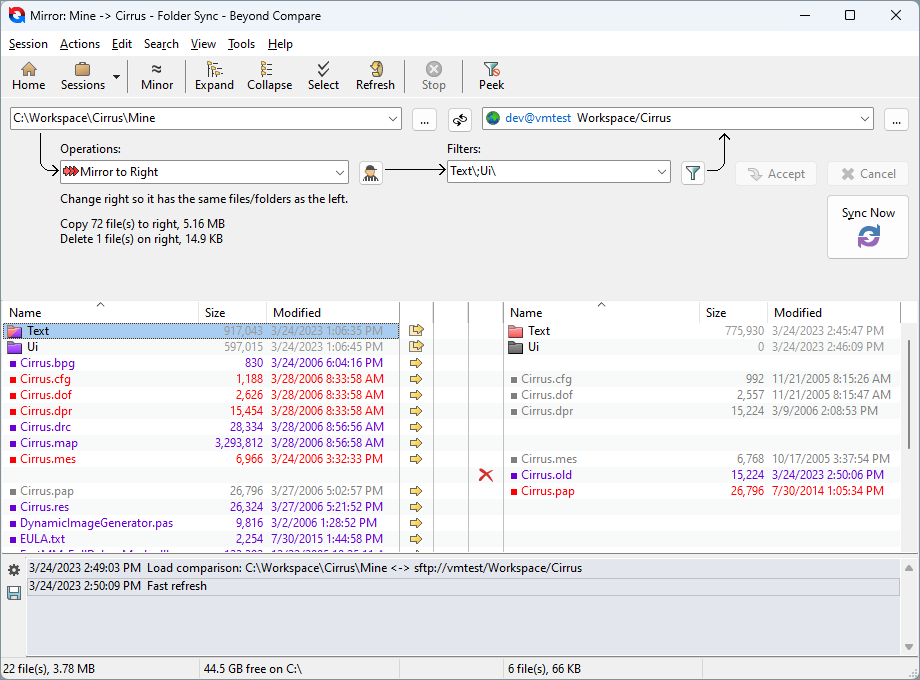
feature.5 / 14A dedicated Folder Sync session is useful for synchronizing folders. The preview pane clearly shows the operations that will be performed.6 / 14
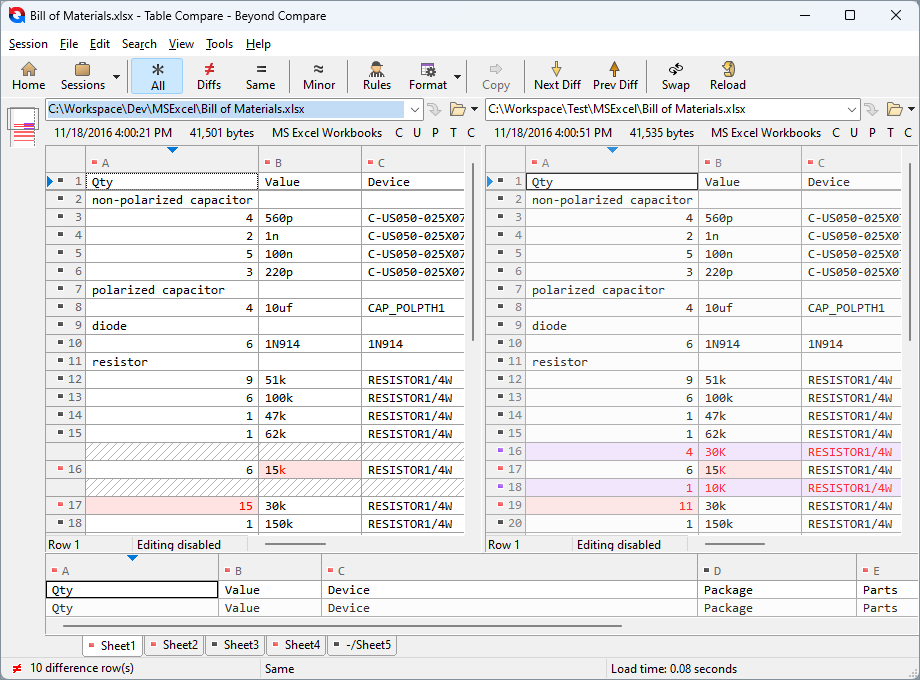
Delimited data files can be compared cell-by-cell in a Table Compare session. Data can be sorted and aligned on key fields, and unimportant columns can be ignored.7 / 14
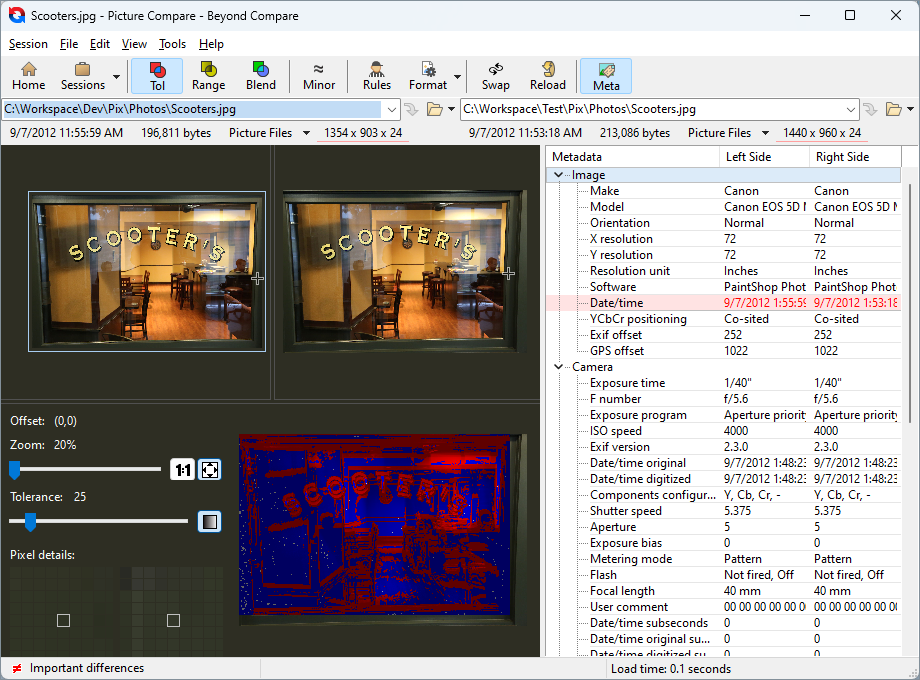
The Picture Compare view shows images side-by-side with their differences highlighted. Various types of image files can be compared.8 / 14
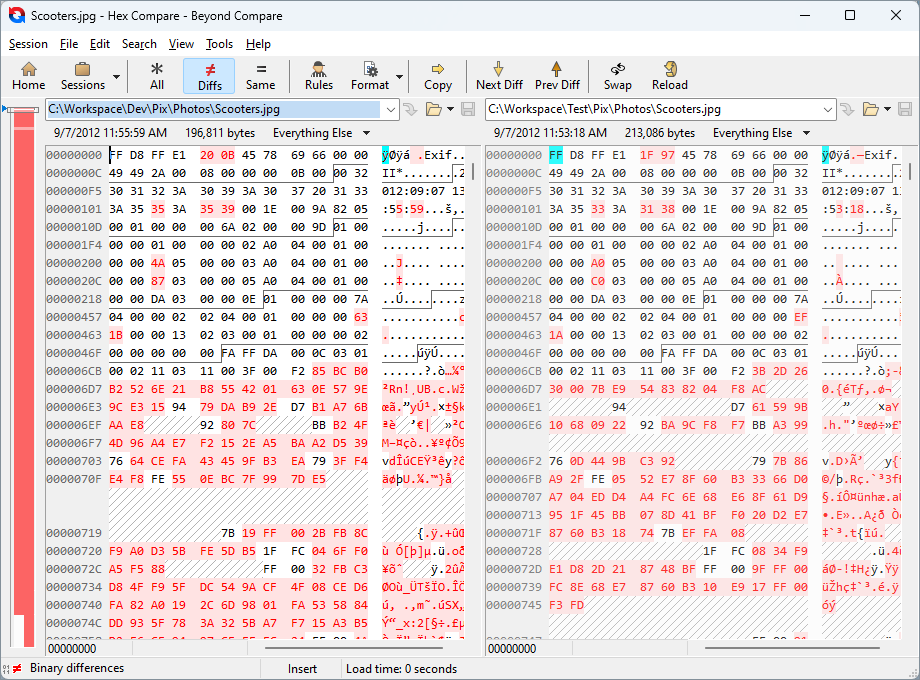
The Hex Compare view shows differences byte-by-byte in a typical hex dump layout.9 / 14
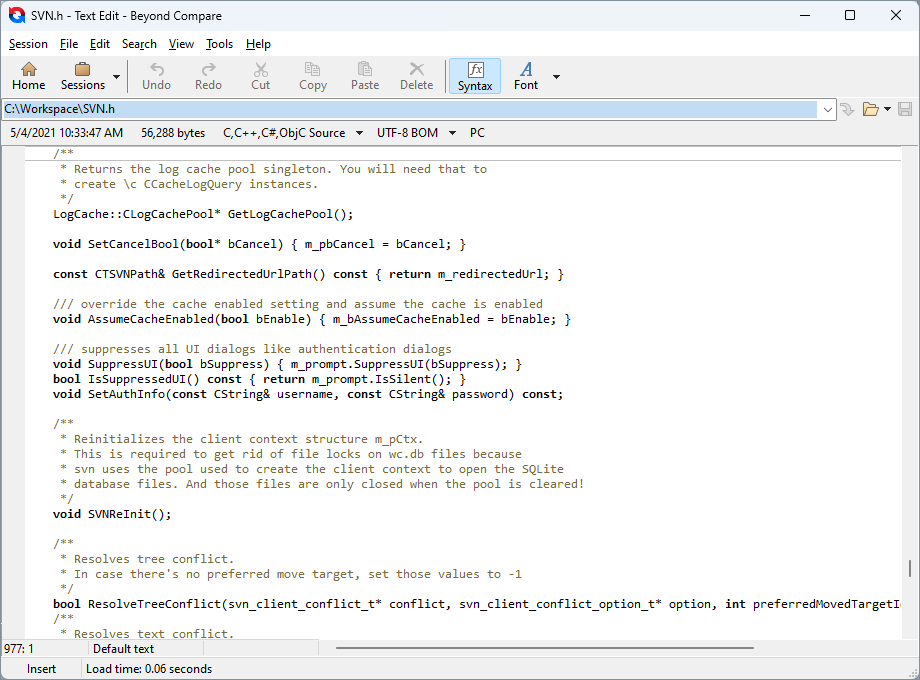
The built-in text editor can also be used on a standalone basis.10 / 14
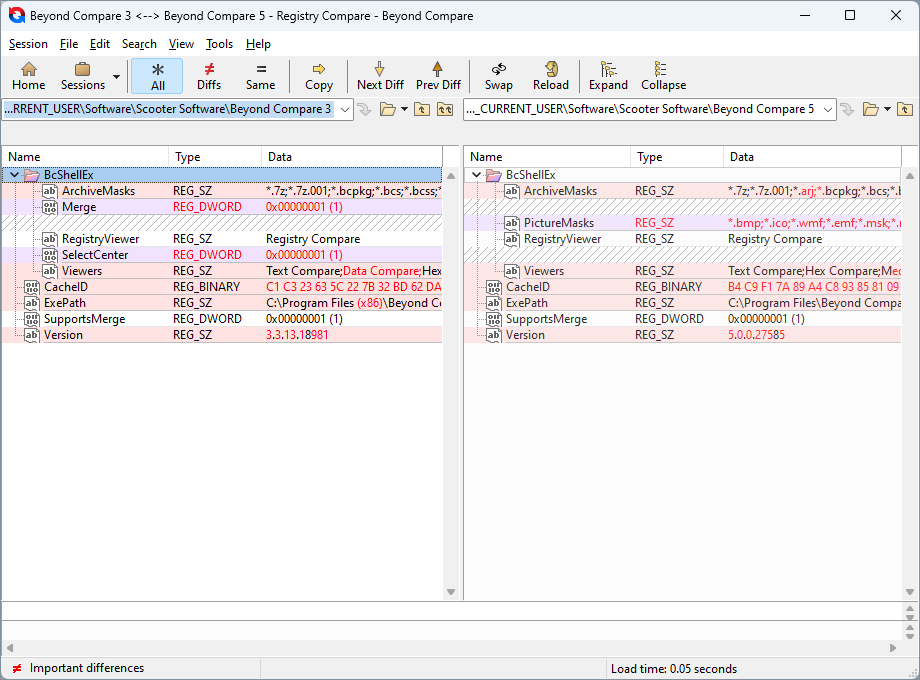
The Registry Compare view compares local and remote live registries as well as registry exports. Registry Compare is a  feature.11 / 14
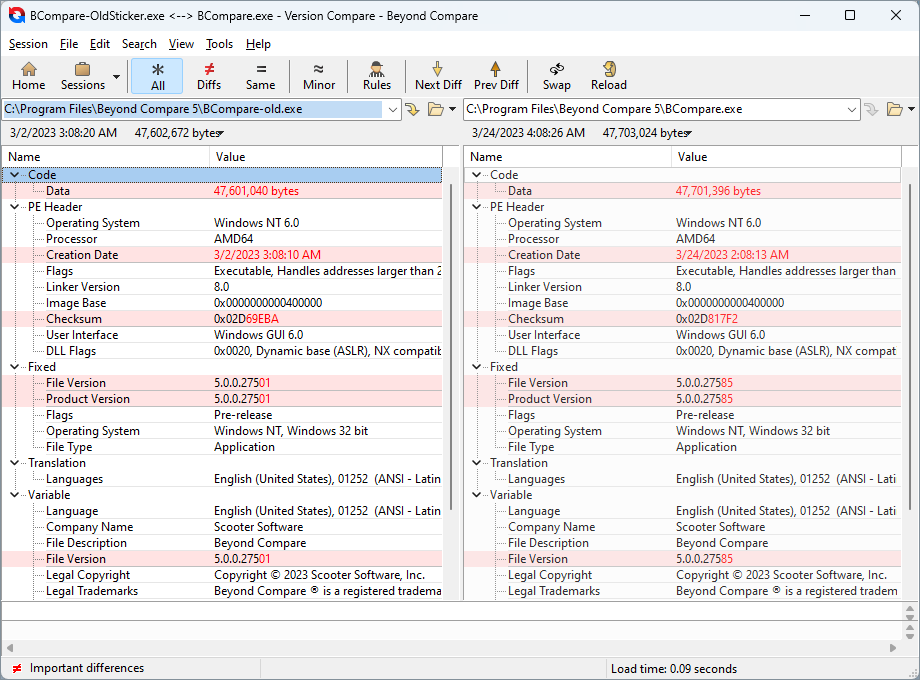
feature.11 / 14The Version Compare view compares executable files (such as .exe and .dll) and shows differences in version information. Version Compare is a feature.12 / 14
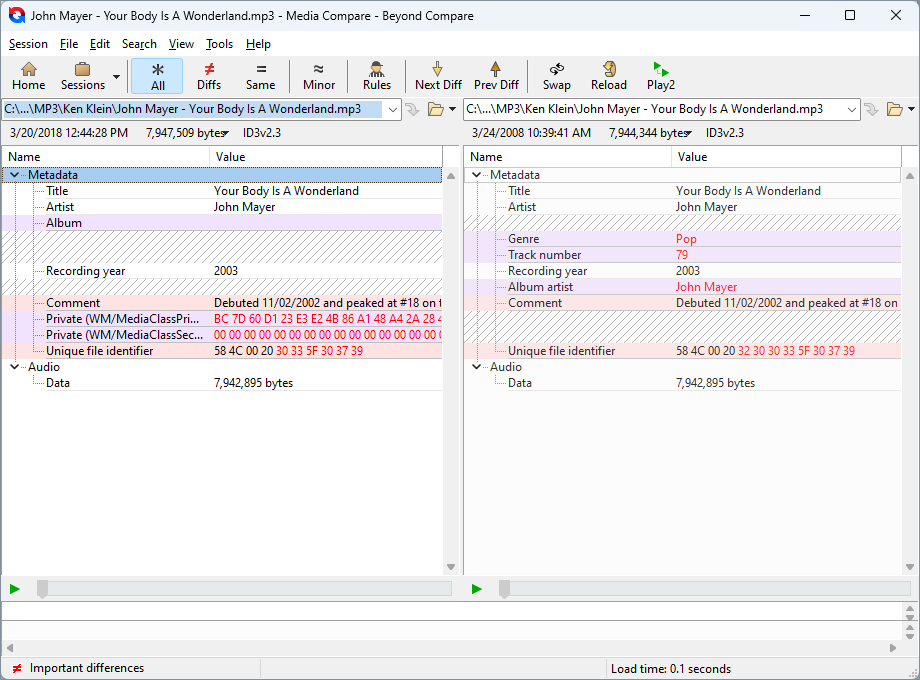
feature.12 / 14The MP3 Compare view compares mp3 files, showing differences in tags.13 / 14
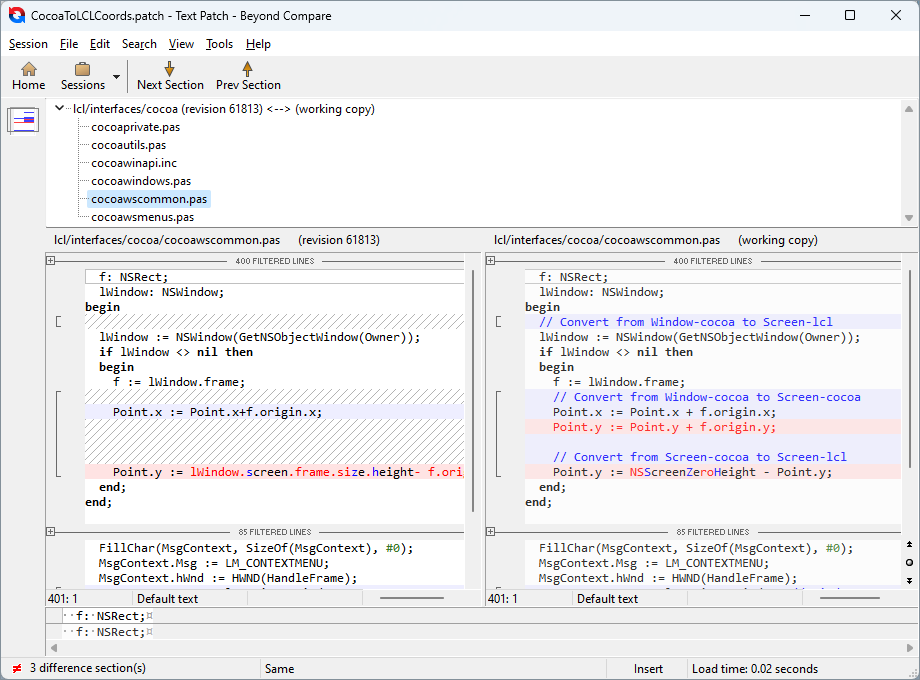
This is a text patch session. Text Patch is a feature.14 / 14
feature.14 / 14Home viewComparing foldersComparing text files3-way folder merge 3-way text merge Folder SyncComparing data tablesComparing image filesComparing binary contentEditing text filesComparing registry entries Comparing version info Comparing MP3 infoText Patch